Features
Every part of it, and what it actually does.
A schedule that runs backward from your date, money that never flatters itself, documents where the work is, and an assistant that shows its sources. Five things, in full.
01 — Backward planning
The date is the input, not the guess at the end
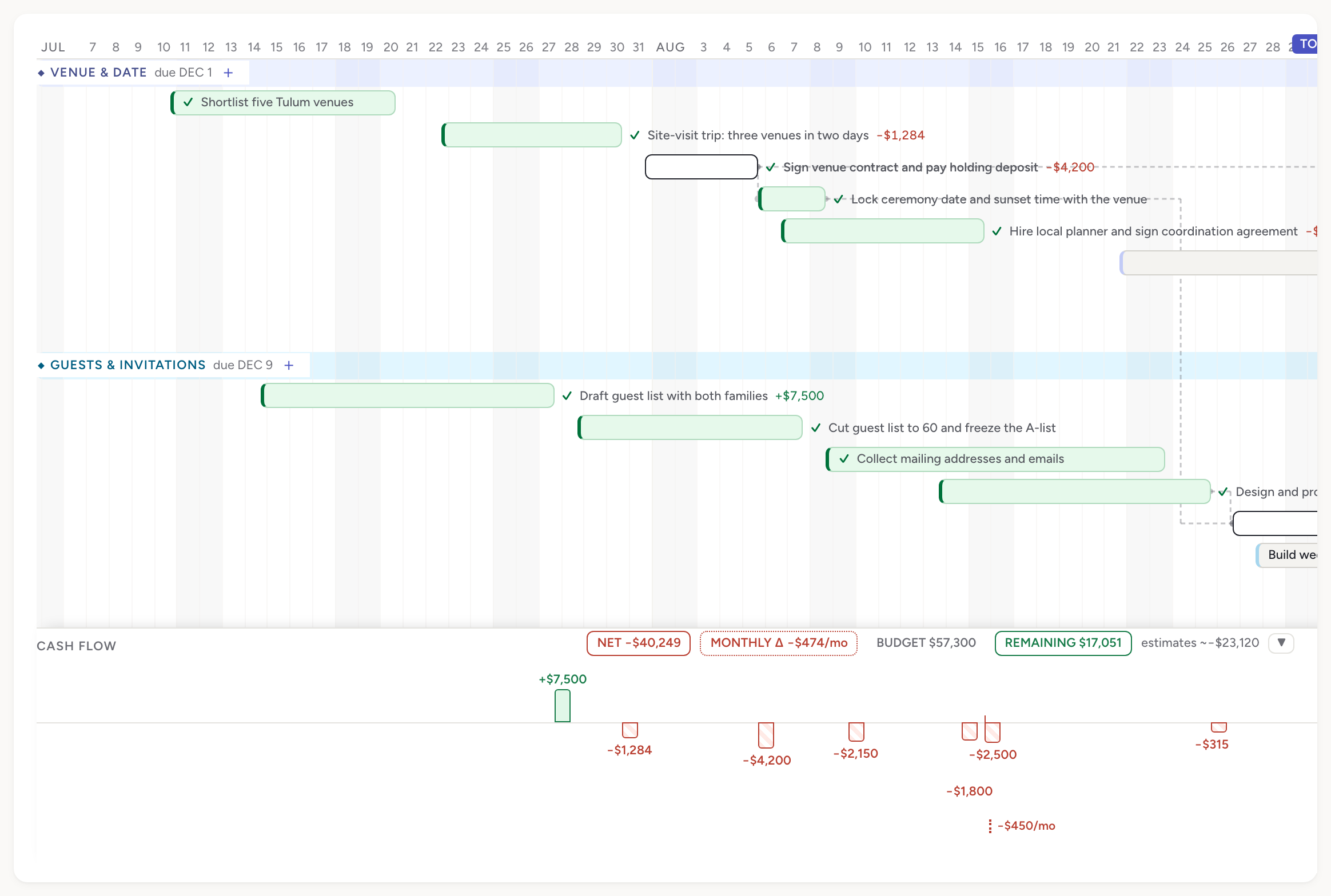
You tell InControl the day the thing has to be true — the wedding, the closing, the move-in — and the engine schedules the work backward from it. Every task lands where it has to land for the date at the end to hold, and every task knows how much room it has left. That room is slack, and InControl shows it to you in days rather than making you infer it from bar widths.
When slack runs thin, the task is flagged at risk. When a task is past its date and still open, it is flagged behind. Both of those show up on the timeline and in your morning email, on the day it happens, not the week before the deadline.
Here is the part we care most about: InControl never silently moves your dates. If a change would push something downstream, it warns you and shows you what would move. Then you decide. A planner that quietly rewrites the plan is a planner you stop believing, so ours doesn't.
02 — Honest cash flow
Estimates are visible everywhere and counted nowhere
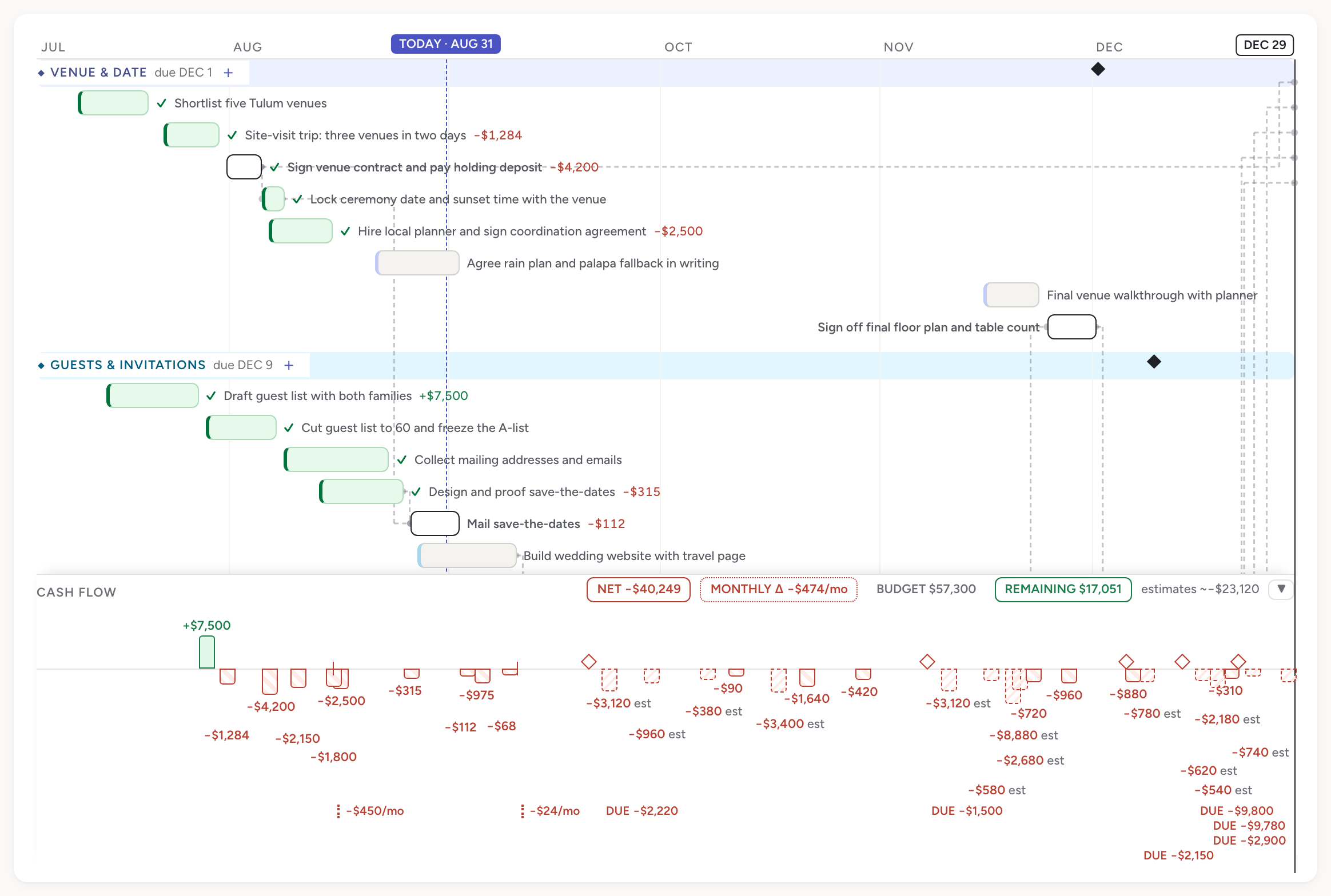
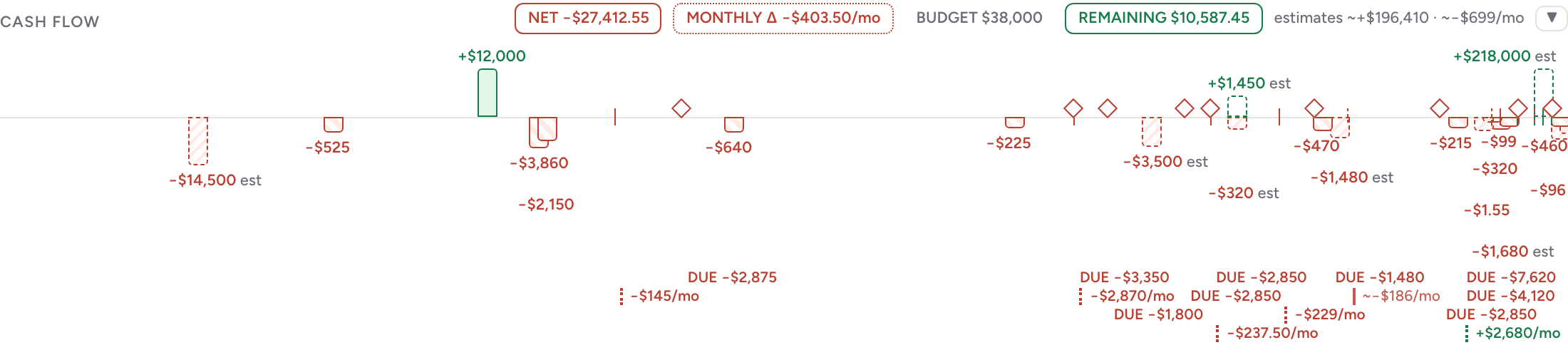
Money lives on the tasks. Each task carries entries — real amounts, in or out — and estimates, which are a different kind of thing and are treated as one. An estimate stays on screen the whole time, drawn dashed and labelled "est", so you never lose sight of what a project is likely to cost. It is never added into NET. NET is money that moved.
Set a budget for the project and Remaining updates as you go. Add recurring costs by the month or the year — storage, insurance, a rental — and they carry forward on their own. Payments that are due get a schedule, so a balance owed in November is visible in August.
All of it lives in the sticky strip under the timeline, on the same time axis as the work, so a heavy month of spending lines up with the tasks that caused it. Collapse the strip when you want the schedule to yourself.
03 — Documents
The work sits on the task it belongs to
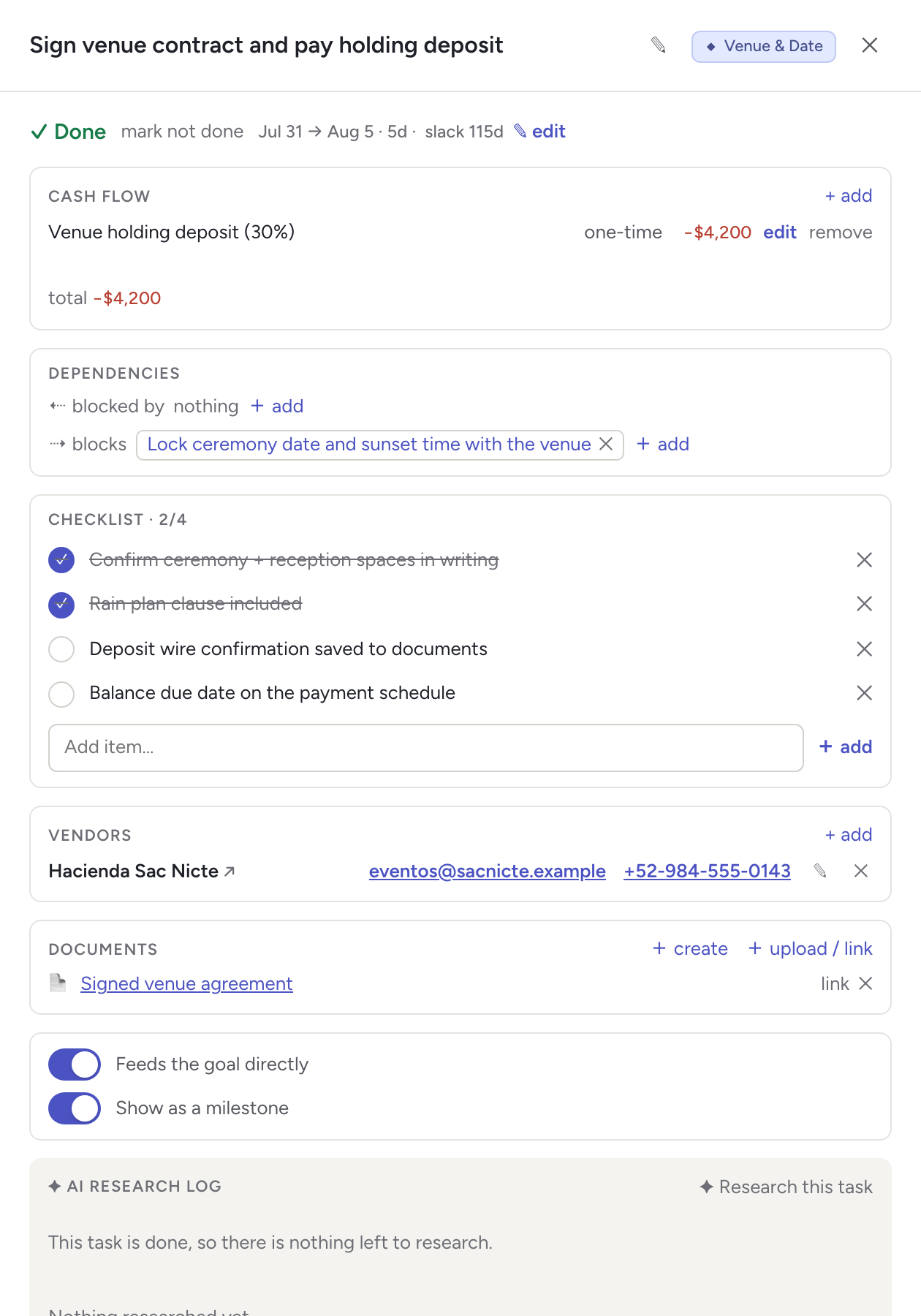
Open a task and everything about it is in one drawer: its dates and slack, its money, what it blocks and what blocks it, a checklist, the vendors involved, and its documents. No hunting through a folder tree to find the quote that goes with the quote request.
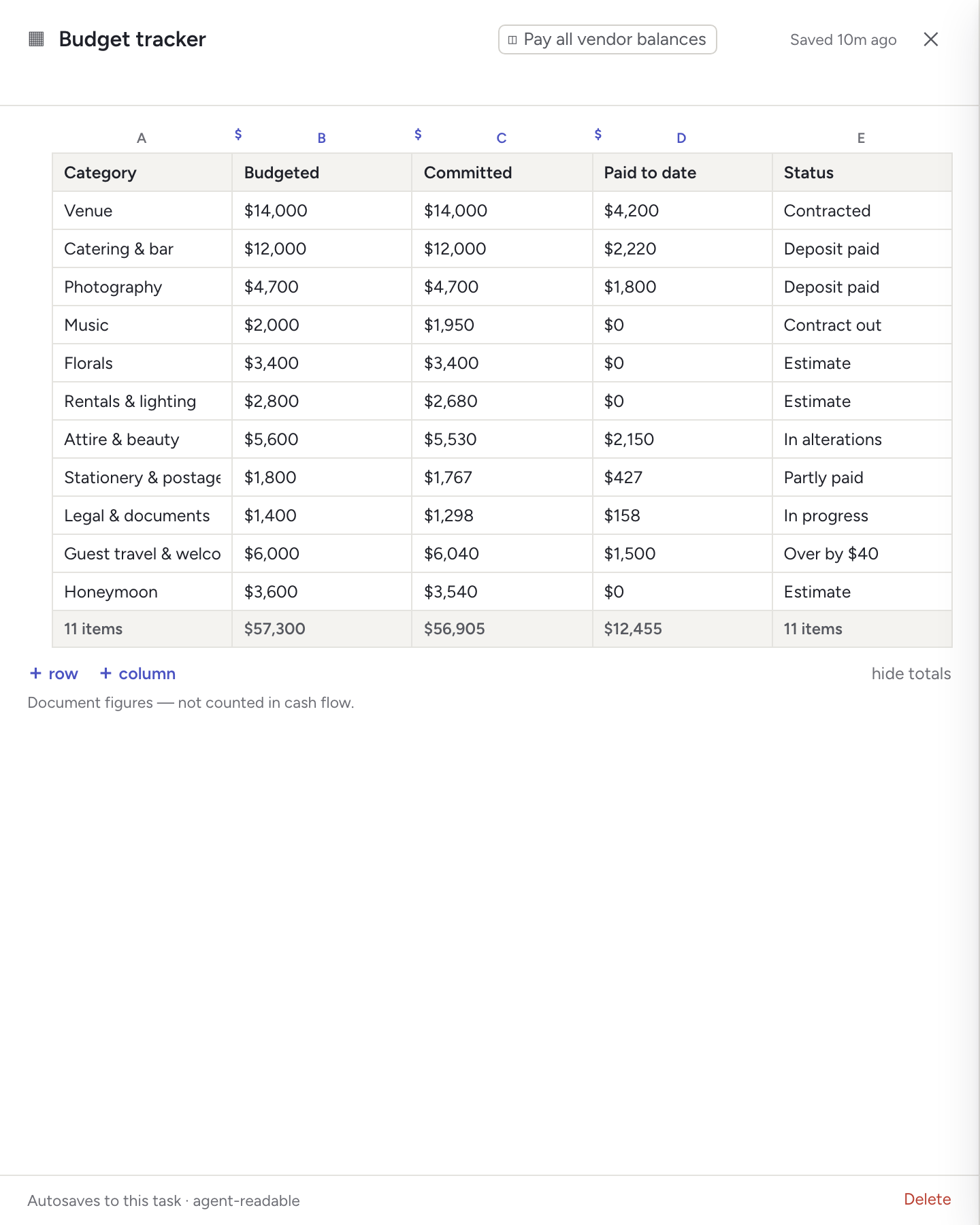
Documents are real markdown documents — headings, tables, links, lists — written in the app and autosaved as you type. Spreadsheets are there too, with money columns that total, for the side maths that shouldn't touch the plan's cash flow; those totals are kept out of cash flow and labelled as such, so nothing is counted twice. Uploads and plain links attach the same way.
Anything attached to one task can be moved to another. Plans change shape; the paperwork should be able to follow.
And a sheet when a sheet is what you want
Not every number belongs in the plan's cash flow. A sheet lives on the task it belongs to, totals its own money columns, and says plainly at the bottom that its figures are document figures and are not counted in cash flow — so the budget you reconcile against never double-counts itself.
04 — The assistant
An AI that does the work, and shows what it did
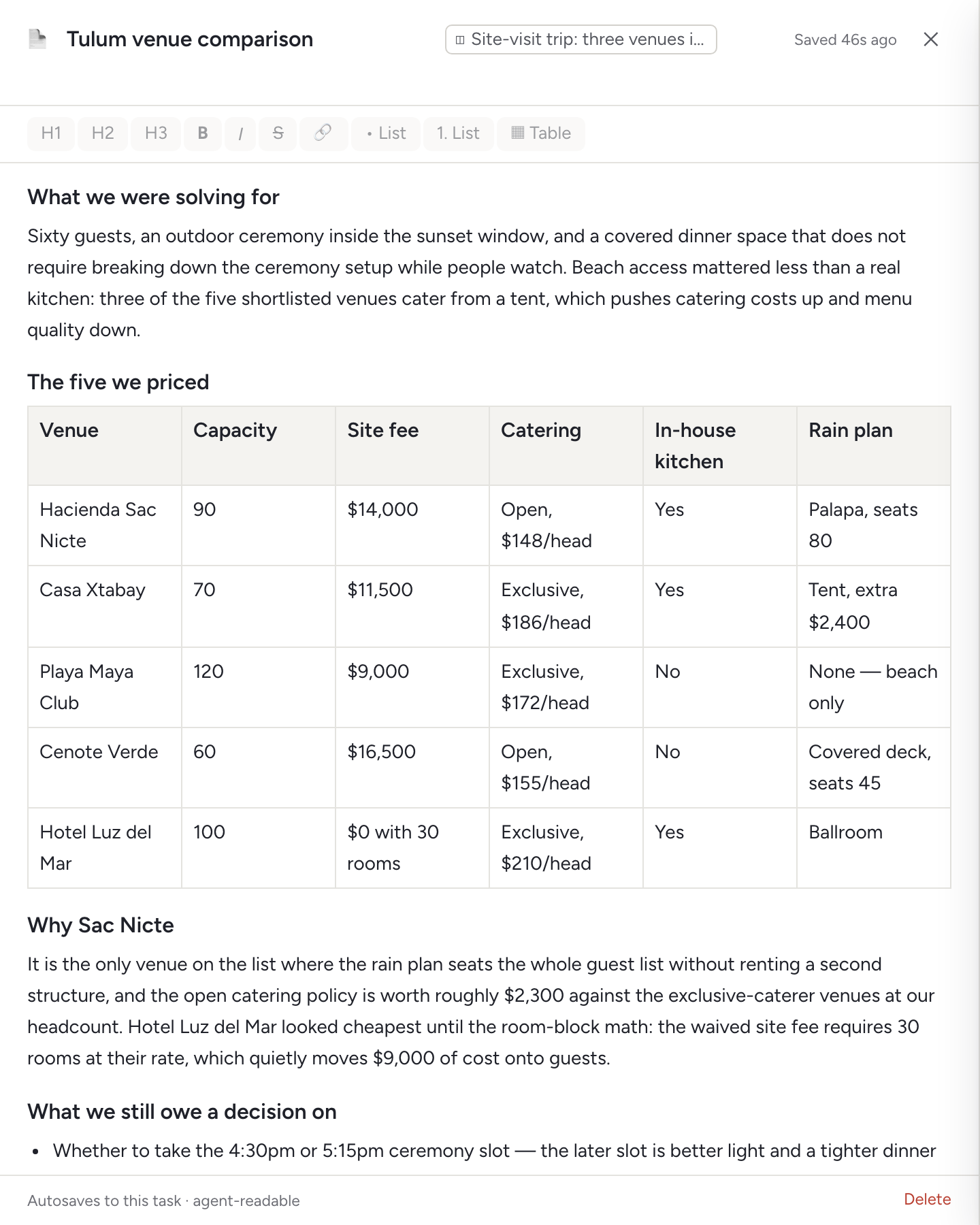
Every project has its own assistant, and it produces output you can use rather than a chat transcript. Ask it about a task and it researches on the live web, then writes what it found into a document attached to that task — a comparison table, a summary, the numbers it turned up — with the sources listed. Those sources are labelled honestly: a page it actually fetched and read is marked differently from a search-result snippet it only glimpsed. The difference matters, so we show it.
It drafts the first version of your plan in the setup wizard — epics, tasks and cost estimates, with the estimates entered as estimates. It watches the schedule for risk and proposes fixes rather than applying them.
Every move it makes is logged, and anything it changed can be undone. You can always see what it did and put it back.
05 — The morning digest
One email, first thing, and then you can stop thinking about it
A plan you have to remember to open is a plan you will stop opening. So InControl sends one email a day with what has fallen behind and the next payment leaving your account. Nothing else, and nothing at any other hour — it goes out once daily at 13:00 UTC, which is early morning in the Americas and evening in Asia.
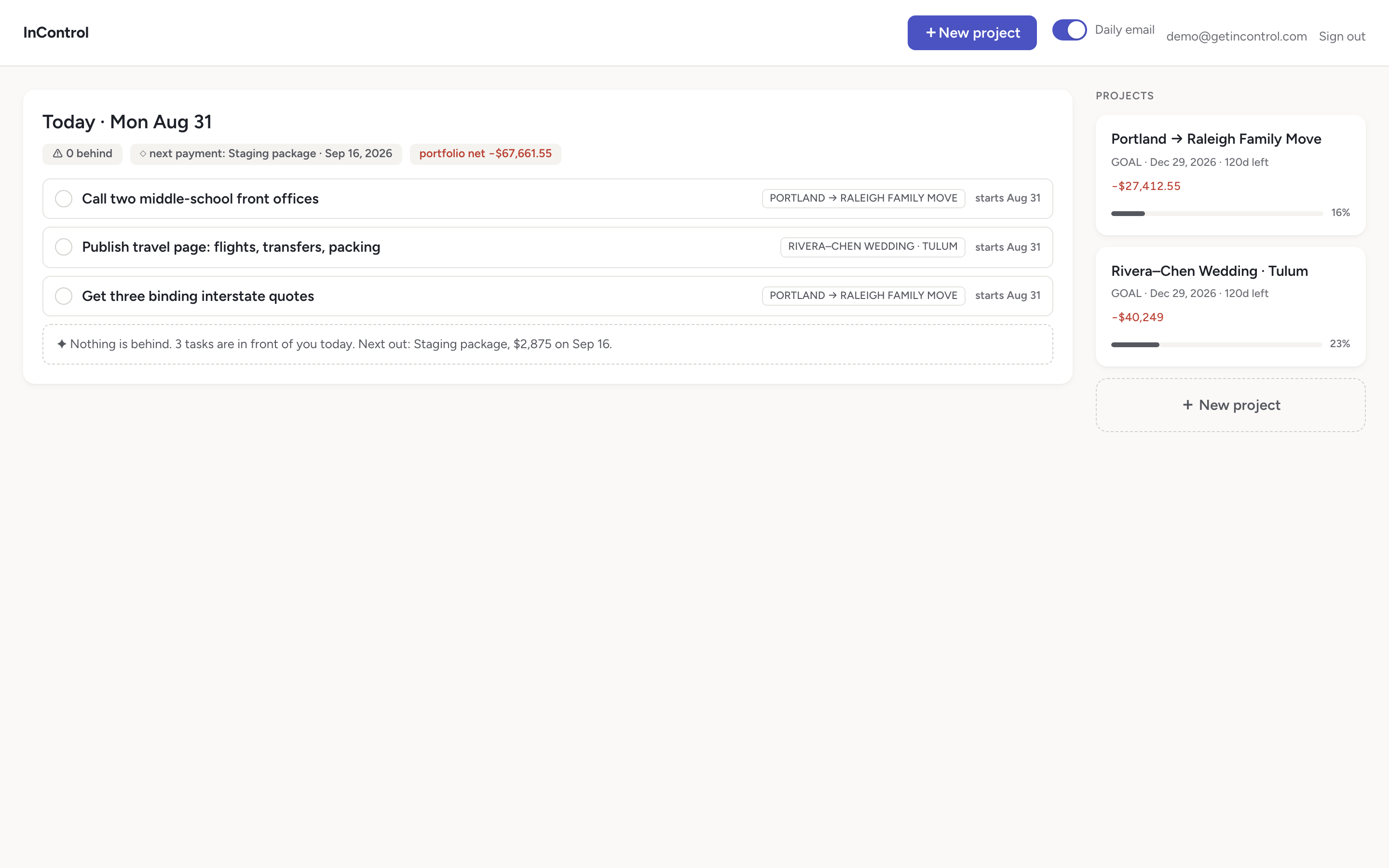
The same summary is the first thing on your dashboard, across every project you have running: today's tasks with the project they belong to, how many things are behind, the portfolio-wide net, and each project's goal date, days remaining and progress. If the day is clear, it says so plainly instead of finding something to worry you with.
One switch turns the email on and off. The digest is composed by the app from your own rows rather than written by a model, so it is arithmetic, not a paraphrase of arithmetic.
And the rest
The smaller pieces that keep a plan usable
Vendors
Attach a vendor to a task with their email, phone number and a link out to them — the caterer on the catering task, the movers on the move. No separate address book to keep in sync.
Checklists
Some tasks are one thing; some are four small things you keep forgetting one of. Add checklist items and the task carries its own count.
Dependencies across epics
Say that the deposit blocks the date lock, even when the two live in different epics. The timeline draws the link, and the schedule respects it.
Milestones and reordering
Flag a task as a milestone and it is marked as one on the timeline and on its epic. Move epics and tasks up and down as the shape of the plan changes.
Epics group the work and carry their own numbers
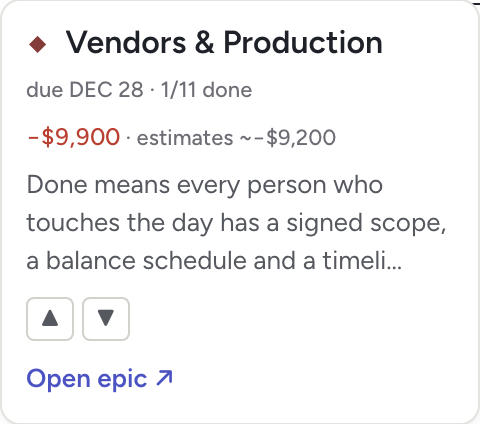
An epic is a phase — venue, guests, vendors — with a due date, a completion count, and its own real spend kept separate from its own estimates, so you can see which phase is actually carrying the budget.
Zoom from the whole project down to single days
The wide view answers "are we going to make it". Zoomed in to day columns, it answers "what am I doing this week, and what is waiting on it".